

If you enjoy Minecraft but want more ways to change how the game looks and plays, the Modrinth launcher is worth checking out. It gives you one place to discover, install, manage, and update Minecraft mods and modpacks.
Modrinth is more than a website for downloading mods. Its desktop application, officially called the Modrinth App, lets you create separate Minecraft instances, choose mod loaders, install shaders, and manage different game setups without mixing everything together.
The best part? The app is free and open source, and it is available for Windows, macOS, and Linux.
In this guide, you’ll learn how the Modrinth launcher works, where to download it safely, how to install Minecraft mods and modpacks, and how to fix common problems. We’ll also look at its features, benefits, and alternatives so you can decide whether it is the right launcher for your Minecraft setup. Modrinth+1
What Is the Modrinth Launcher?
The Modrinth launcher is a desktop application that helps Minecraft: Java Edition players manage their modded gameplay. It connects directly to the Modrinth platform, where players can discover community-created mods, modpacks, resource packs, shaders, and other Minecraft content.
Although many players call it the Modrinth launcher, its official product name is Modrinth App.
Think of it as a central hub for your Minecraft installations. Instead of downloading every mod separately and moving files between folders, you can find compatible content and manage it through one application.
For example, imagine you want to play Minecraft with better graphics, new creatures, and additional building options. You can create an instance, select a suitable mod loader, install the mods you need, and launch that setup whenever you want.
Here are the main parts of the Modrinth ecosystem:
- Modrinth website: A place to discover, download, and publish Minecraft content.
- Modrinth App: The desktop launcher used to install and manage Minecraft content.
- Modrinth Servers: A hosting service connected to the Modrinth ecosystem.
- Modrinth API: A developer interface that allows other applications to interact with Modrinth.
One thing to remember is that Modrinth currently focuses on Minecraft: Java Edition content. It is not a general launcher for every Minecraft version or other popular games. Modrinth Help Center+1
How to Download the Modrinth Launcher
Downloading the Modrinth launcher is simple. The safest option is to use its official website rather than downloading an installer from an unfamiliar third-party website.
How to get and use the Modrinth App for Minecraft mods
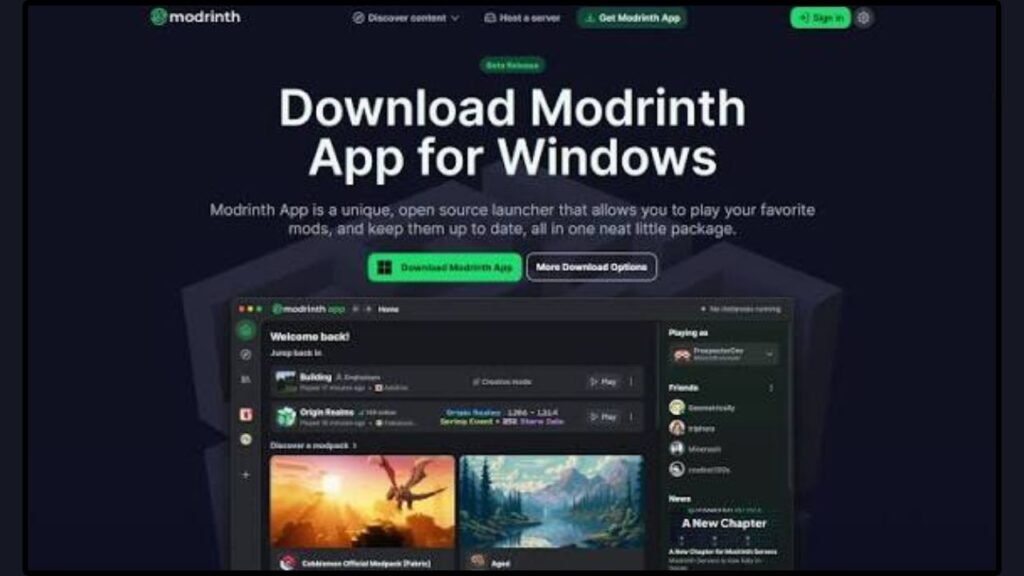
Official Modrinth Launcher Download
You can get the application directly from the official download page:
Download Modrinth App – Official Website
Follow these steps:
- Open the official Modrinth download page.
- Find the download option for your operating system.
- Select Windows, macOS, or Linux.
- Download the available installer or package.
- Open the downloaded file and follow the installation instructions.
- Launch Modrinth App after the installation finishes.
マイクラのMOD管理が最強のツール Modrinth とは?MOD導入が一瞬になる最強ランチャーの導入方法・使い方 | PYONPE
Which Operating Systems Support Modrinth?
The Modrinth App is available for three main desktop platforms.
| Operating system | Availability |
|---|---|
| Windows | Available |
| macOS | Available |
| Linux | Available |
Linux users should pay attention to the installation method. Modrinth lists additional Linux packages, but some are maintained by community members rather than the official Modrinth team. The official download page also warns that certain Linux configurations may have stability issues. Modrinth+1
Important: Always check the official download page for the latest supported release and installation options. Do not assume that an installer from an old tutorial is still the best choice.
Main Features of the Modrinth Launcher
The Modrinth launcher offers several features that make Minecraft mod management easier. You can use it to discover new content, create separate game setups, and keep your installed projects organized.
Let’s look at the features that matter most.
1. Easy Mod Installation and Management
One of the biggest reasons players use Modrinth is its built-in mod management system.
You can search for Minecraft mods directly inside the application. When you find something you like, you can install it without manually searching for a separate download file.
The app also provides options to uninstall and update installed mods.
For example, if you want to improve Minecraft performance, you might search for compatible performance mods such as Sodium or Lithium.
You can manage these projects from your instance rather than repeatedly moving files between folders. Modrinth
2. Minecraft Modpack Support
Modpacks combine multiple mods and additional files, such as configuration settings, into a ready-to-play setup.
This is useful when you want a complete gameplay experience instead of installing every mod individually.
Some modpacks focus on:
- Better Minecraft performance.
- New creatures and exploration.
- Technology and automation.
- Building and decoration.
- Adventure and survival challenges.
- New dimensions and progression systems.
The Modrinth App lets you browse available modpacks, install them, and launch them from your library. Modrinth Help Center+1
3. Separate Minecraft Instances
An instance is an independent Minecraft setup with its own game version, loader, mods, and settings.
This feature is especially useful if you enjoy playing different types of Minecraft.
For example, you could create:
- One instance for vanilla Minecraft.
- One instance for Fabric performance mods.
- One instance for a survival modpack.
- One instance for testing new mods.
Each setup stays separate, making it easier to manage your content and avoid unnecessary conflicts.
You can also create, duplicate, import, and export instances through the application. Knowledgebase Article – Nodecraft+1
The Modrinth launcher allows you to create separate Minecraft instances, making it easier to manage different mod collections, game versions, and personal settings.
4. Support for Different Mod Loaders
A mod loader helps Minecraft run modifications that change or add game features.
Modrinth supports popular modding options, including:
- Fabric
- Forge
- Quilt
- Vanilla
Some content may also support other loaders through compatible projects or third-party tools, but always check the specific loader options available for your selected Minecraft version.
Choosing the correct loader matters because a mod made for Fabric will not automatically work with Forge.
Before installing anything, check the mod’s supported game version and loader.
5. Shaders and Resource Packs
Mods are not the only content available through Modrinth.
You can also discover shaders and resource packs that change the appearance of Minecraft.
Shaders can improve lighting, shadows, water effects, and other visual details.
Resource packs can change textures, sounds, and other parts of the game’s presentation.
For example, you might use a shader to create more realistic lighting while keeping your regular Minecraft gameplay.
Just remember that some shaders require additional compatible software and a capable computer. The Modrinth launcher also makes it easier to manage Minecraft shaders and resource packs alongside your other installed game content.
6. Open-Source Software
Another useful feature is that Modrinth App is open source.
This means its source code is publicly available, allowing developers and interested users to inspect the project and contribute to its development.
Open-source software does not automatically mean that every download or mod is safe. You should still check project information, permissions, and the files you install.
7. Importing Existing Profiles
Already using another Minecraft launcher?
You may not need to rebuild every setup from scratch. Modrinth provides instance and profile importing options to help users move existing configurations into the application.
This can save time when switching launchers, although compatibility depends on the source launcher and the content being imported. Modrinth+1
The Modrinth launcher makes it easier to move your existing Minecraft profiles into a new setup while keeping your preferred mods and configurations organized.

How to Set Up the Modrinth Launcher for the First Time
After downloading the application, you need to complete a few basic steps before playing Minecraft.
Install Modrinth App on Linux | Flathub
Step 1: Open Modrinth App
Find the Modrinth App shortcut on your computer and open it.
Wait for the application to load. You should see its main interface, including navigation options for browsing content and managing your instances.
Step 2: Sign In With Your Microsoft Account
To launch Minecraft, you will need to sign in using the Microsoft account connected to your Minecraft: Java Edition ownership.
Follow these steps:
- Find the account selection option.
- Open the sign-in menu.
- Select the option to add or sign in to an account.
- Complete the Microsoft authentication process.
- Return to Modrinth App and check that your account appears.
Use the correct Microsoft account. Signing in with an account that does not own Minecraft: Java Edition may prevent you from playing the game.
Step 3: Create Your First Minecraft Instance
An instance gives you a separate place to manage a Minecraft installation. The Modrinth launcher makes creating your first Minecraft instance simple, allowing you to choose a game version and prepare a separate environment for your mods.
To create one:
- Open the instance creation option.
- Enter a name for your setup.
- Select your preferred Minecraft version.
- Choose a mod loader, if required.
- Select any available configuration options.
- Create the instance.
You can give your instance a name such as “Survival World” or “Performance Setup” to identify it easily.
Step 4: Choose Your Mod Loader
If you plan to use mods, select a compatible mod loader.
Fabric is commonly used for lightweight and performance-focused mod setups. Forge is another popular choice with its own collection of compatible mods.
Quilt is another option supported by the Modrinth ecosystem.
You should select the loader based on the mods you want to install, not simply because one option sounds better.
Step 5: Launch Minecraft
Once your instance is ready, open it from your library and select Play.
The launcher will prepare the required game files and start Minecraft.
Your first launch may take longer because the application needs to download and prepare the necessary files.
After that, you can return to the same instance whenever you want to play.
How to Install Minecraft Mods Using Modrinth Launcher
Installing mods is one of the main reasons players choose the Modrinth launcher.
The built-in content browser makes it easier to find compatible projects without manually downloading every file.
マイクラのMOD管理が最強のツール Modrinth とは?MOD導入が一瞬になる最強ランチャーの導入方法・使い方 | PYONPE
Follow these steps:
- Open Modrinth App.
- Select the Minecraft instance where you want to install mods.
- Open its Mods or Install Content section.
- Search for the mod you want.
- Open the project page and review its details.
- Check the supported Minecraft version and mod loader.
- Select Install.
- Wait for the download to finish.
- Return to your instance and launch Minecraft.
How to Choose Compatible Mods
Not every Minecraft mod works with every game version.
Before installing a project, check these details:
| Compatibility factor | What to check |
|---|---|
| Minecraft version | Does it support your game version? |
| Mod loader | Is it made for Fabric, Forge, or another loader? |
| Dependencies | Does it require additional mods? |
| Project version | Is the release compatible with your setup? |
| Requirements | Does it need additional software or configuration? |
For example, if your instance uses Fabric for Minecraft 1.21, look for a mod release that supports both Fabric and your selected game version.
Installing a mod for a different Minecraft version can cause crashes or prevent the game from launching.
Quick tip: Start with a few mods rather than installing 30 or 40 at once. If something goes wrong, finding the problem will be much easier.
How to Install Modpacks With Modrinth Launcher
Modpacks are a great option if you want to change your Minecraft experience without building an entire mod setup yourself.
Instead of selecting each mod individually, you can install a collection that already includes compatible content and configuration files.
Step-by-Step Modpack Installation
- Open the Modrinth App.
- Navigate to the Browse or Discover section.
- Select the Modpacks category.
- Search for your preferred modpack.
- Open its project page.
- Review the description, supported Minecraft version, and loader.
- Click Install.
- Wait for the required files to download.
- Open the installed modpack from your library.
- Click Play to start the game.
The exact interface labels can change between app releases, but the basic installation process remains the same. Modrinth Help Center+1
Can You Import a Modpack From a File?
Yes. Modrinth also supports importing modpack files.
This is useful when a friend shares a compatible modpack with you or when you want to move a setup between computers. The Modrinth launcher supports importing compatible modpack files, making it easier to transfer an existing Minecraft setup without installing every mod individually. The Modrinth launcher provides a convenient way to import supported modpack files, so you can set up an existing Minecraft pack without adding each mod manually.
The general process is:
- Open the instance creation menu.
- Select the import-from-file option.
- Choose your compatible modpack file.
- Confirm the import.
- Allow the launcher to download the required content.
Modrinth modpacks commonly use the .mrpack format.
Always make sure you trust the person or source sharing the file before importing it.
How to Share Your Own Modpack
You can also export an instance as a modpack.
Open the instance, navigate to its Mods section, and select Export Modpack when the option is available.
You can then prepare the exported file to share with other players.
Remember that some files may have separate distribution permissions. Check the permissions of the included projects before sharing a modpack publicly. Modrinth Help Center+1
Modrinth Launcher vs CurseForge: Which One Is Better?
Modrinth and CurseForge are two popular platforms for discovering and managing Minecraft modifications.
Both help players find mods and modpacks, but they offer different experiences.
Modrinth
Open-source modding platform
CurseForge Logo PNG Vector (SVG) Free Download
CurseForge
Established mod distribution platform
Feature Comparison
| Feature | Modrinth | CurseForge |
|---|---|---|
| Mod discovery | Yes | Yes |
| Modpack support | Yes | Yes |
| Desktop launcher | Yes | Yes |
| Open source | Yes, app | Not fully open source |
| Separate instances | Yes | Yes |
| Resource packs | Yes | Yes |
| Shader discovery | Yes | Yes |
| Community projects | Yes | Yes |
Which Launcher Should You Choose?
Choose Modrinth if you prefer:
- An open-source desktop application.
- Easy access to Modrinth projects.
- Separate Minecraft instances.
- A simple way to install and update mods.
- An application integrated with the Modrinth website.
CurseForge might be a better choice if you regularly use its mod collection or need access to projects that are not available on Modrinth.
My recommendation: Try Modrinth if you are starting with Minecraft Java modding. It offers a straightforward way to discover content and manage separate setups. However, you do not need to choose only one platform. You can use both depending on the mods and modpacks you want.
Is the Modrinth Launcher Safe to Use?
Yes, downloading the official Modrinth App from its official website is the recommended way to get the software.
The application is open source, and Modrinth provides an official help center for installation, account, and troubleshooting questions. Modrinth+1
However, there is an important difference between the launcher and the content you install through it.
The launcher itself and individual community-created mods are not the same thing. A project being available on a mod platform does not automatically mean it is free from security risks.
Follow these safety tips:
- Download the launcher from the official website.
- Check the project creator before installing a mod.
- Read the project description and available documentation.
- Review required permissions and dependencies.
- Avoid suspicious files shared through random websites.
- Keep your launcher and installed mods updated.
- Back up important Minecraft worlds before making major changes.
You should also avoid sharing your Microsoft account password with anyone claiming to offer free mods or launcher support.
Common Modrinth Launcher Problems and How to Fix Them
Like other Minecraft launchers, Modrinth can sometimes experience installation errors, login issues, or game crashes.
Most problems are related to incompatible mods, incorrect Java settings, damaged instance files, or network issues.
Here are some practical solutions.
1. Modrinth Launcher Is Not Opening
If the application does not open, try these steps:
- Close any running Modrinth processes.
- Restart your computer.
- Check whether you have installed the latest application version.
- Make sure your operating system is supported.
- Try opening the application again.
If the problem continues, check the official Modrinth Help Center for operating-system-specific errors.
2. Minecraft Crashes After Installing Mods
This is one of the most common problems with modded Minecraft.
A mod may be incompatible with your game version or loader. Two mods may also conflict with each other.
Try this approach:
- Check whether your installed mods support the same Minecraft version.
- Confirm that each mod supports your selected loader.
- Update outdated mods.
- Read the crash report for clues.
- Disable half of your installed mods and test the game.
- Repeat the process until you identify the problematic mod.
This last method is called binary search troubleshooting. It helps you narrow down the problematic mod without testing every file individually.
Modrinth also recommends checking crash logs, updating mods, and using this method when necessary. Modrinth Help Center
3. Modrinth Says Java Is Missing
Minecraft: Java Edition requires a compatible Java installation.
If you see a Java-related error, open Modrinth settings and find the Java installations section.
The official help documentation recommends using the Install Recommended option for the available Java 21, Java 17, and Java 8 installations.
The correct version depends on the Minecraft version you are trying to play. Modrinth Help Center
Do not randomly download Java files from unknown websites.
4. Mods Are Not Showing Up in Minecraft
If you installed a mod but cannot find its features in the game, If your mods are not appearing in Minecraft, the Modrinth launcher can help you check whether they are installed in the correct instance and match the selected mod loader, check the following:
- Did you install it in the correct instance?
- Does the mod support your selected loader?
- Is the mod compatible with your Minecraft version?
- Does it require another mod to work?
- Did you launch the correct instance?
Sometimes players install mods into one profile and accidentally launch another.
Checking the instance name before clicking Play can prevent this mistake.
5. Modrinth Instance Is Corrupted
An instance can sometimes become corrupted because of damaged or incomplete files.
The official Modrinth Help Center provides a repair option.
To try it:
- Open the affected instance.
- Go to its instance options.
- Find the Installation section.
- Select Repair.
- Wait for the process to finish.
This can fix certain instance problems without requiring you to rebuild the entire setup. Modrinth Help Center
6. Your Minecraft Instances Have Disappeared
If your profiles or instances are missing, do not immediately delete the application or its data.
First, check the app directory through the Resource Management section of the settings.
Modrinth provides instructions for recovering existing instance folders and rebuilding their entries.
One important warning: selecting Delete Application Data during an uninstall can permanently remove instances and worlds. Back up important files before attempting recovery. Modrinth Help Center+1
Tips for Getting the Best Experience With Modrinth Launcher
Once you understand the basic features, a few simple habits can make managing Minecraft much easier.
Keep Different Playstyles in Separate Instances
Avoid installing every mod into one Minecraft setup.
Instead, create separate instances for survival, performance testing, exploration, and modpacks.
This makes it easier to manage different configurations.
Check Mod Compatibility Before Installing
Always review the Minecraft version and loader requirements.
A compatible mod can save you from unnecessary crashes and troubleshooting.
Avoid Installing Too Many Mods at Once
Start with a small selection of mods and add more as needed.
If Minecraft stops working, you will have fewer files to investigate.
Back Up Your Important Worlds
Before changing loaders, updating a large modpack, or making major changes, create a backup of your worlds.
This is especially important when you have spent many hours building or exploring.
Update Mods Carefully
Updates can introduce new features and fixes, but they can also change compatibility.
For important worlds, avoid updating every mod immediately without checking whether the new versions work together.
Adjust Your Java and Memory Settings Carefully
Large modpacks can require more system resources than regular Minecraft.
If a modpack runs poorly, check the recommended requirements and your available RAM before changing settings.
Giving Minecraft more memory than your computer can handle will not automatically improve performance.
Frequently Asked Questions
Is the Modrinth launcher free?
Yes. The Modrinth App is free to download and use. You can discover and install available Minecraft mods and modpacks without purchasing a premium launcher subscription.
Is Modrinth better than CurseForge?
It depends on what you need. Modrinth offers an open-source application and convenient mod management. CurseForge has its own large collection of Minecraft projects. Both are useful options.
Can I use Modrinth without Minecraft Java Edition?
You can browse the Modrinth website without owning Minecraft, but playing its modded Minecraft content requires Minecraft: Java Edition and an eligible Microsoft account. Modrinth currently focuses on Java Edition content.
Does Modrinth support Fabric and Forge?
Yes. Modrinth supports popular mod loaders, including Fabric, Forge, and Quilt. Make sure your selected mod supports the loader and Minecraft version you are using.
Can I install shaders using Modrinth?
Yes. You can discover shaders through Modrinth. However, some shaders require compatible shader-support mods or additional configuration before they work in Minecraft.
Is Modrinth available for Windows 11?
Yes. The official Modrinth App download page provides a Windows version. Check the official website for current installation requirements.
Can I use Modrinth and CurseForge together?
Yes. You can use both platforms to discover and install Minecraft content. Just make sure that the mods you install in an instance are compatible with its Minecraft version and loader.
Does Modrinth work offline?
The application advertises offline gameplay support. However, you should download the required game files and content and complete account authentication before going offline. Some online features will still require an internet connection. Modrinth
Conclusion
The Modrinth launcher is a useful option for Minecraft players who want an easier way to install mods, explore modpacks, and manage different game setups.
Its open-source design, separate instances, mod management tools, and support for popular mod loaders make it a practical choice for both beginners and experienced Minecraft players.
If you are planning to explore modded Minecraft, start by downloading the official Modrinth App, creating your first instance, and installing a few compatible mods.
Remember to check mod requirements and back up your important worlds before making major changes.
For more Minecraft guides, mod recommendations, gaming tips, and tutorials, keep exploring Gamelorix.
You may also read:
Hunty Zombie Codes: Latest Working Roblox Codes and Free Rewards